> ## Documentation Index
> Fetch the complete documentation index at: https://docs.hostbyte.net/llms.txt
> Use this file to discover all available pages before exploring further.
# New file
> Once your Java Edition server is set up on HostByte, you’ll want to join it and start playing. This guide walks you through how to connect to your Minecraft Java server.
## Step 1: Launch Minecraft Java Edition
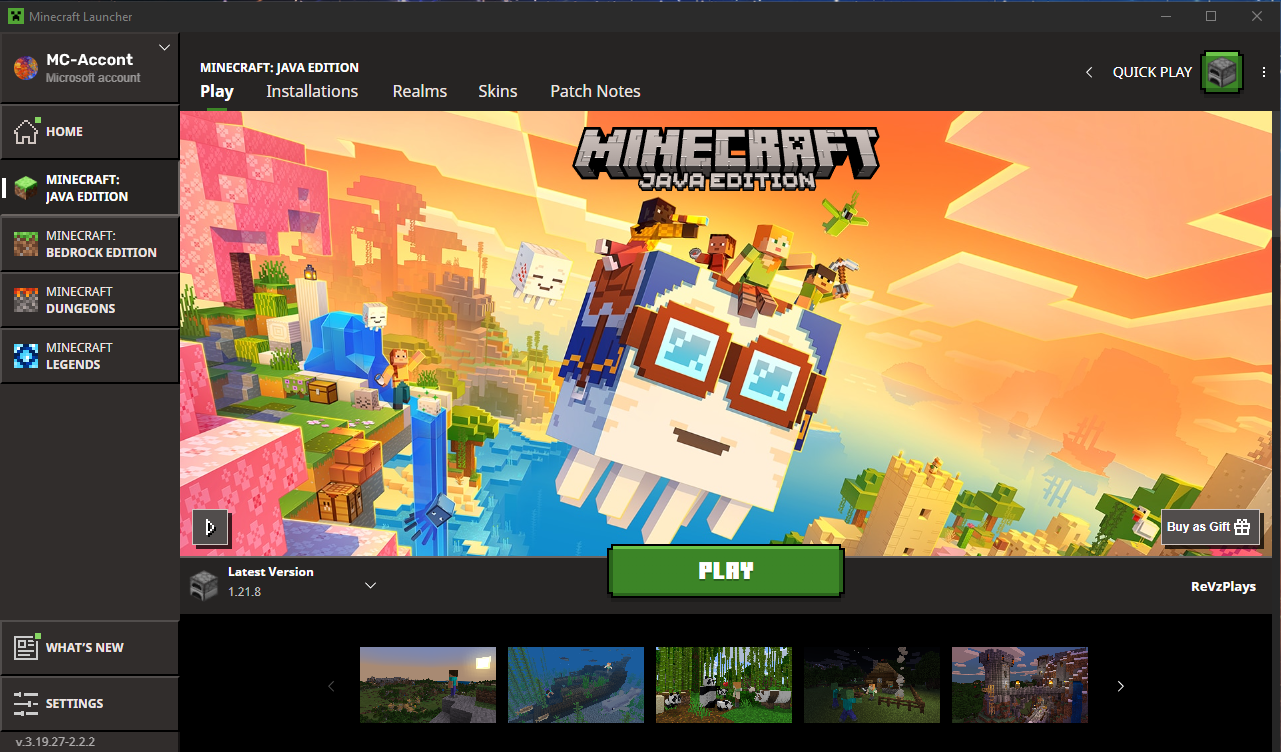
1. Open the official **Minecraft Launcher** on your PC or laptop.
2. Log in with your **Microsoft** account.
3. Click **Play** to launch the version your server runs (you can choose a specific version from the launcher).
 ## Step 2: Find Your Server IP and Port
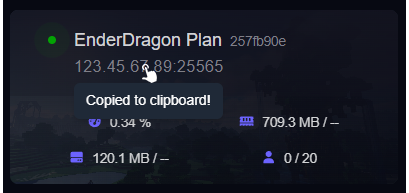
1. Log in to your [HostByte Game Panel](https://game.hostbyte.net/).
2. Click your Minecraft server to open its details.
3. Locate the **Server Address** (IP and port), e.g. `123.45.67.89:25565`.
**➡️ Note:** If you’re using a custom domain (e.g. `play.yourserver.net`), you can use that instead of the IP.
## Step 2: Find Your Server IP and Port
1. Log in to your [HostByte Game Panel](https://game.hostbyte.net/).
2. Click your Minecraft server to open its details.
3. Locate the **Server Address** (IP and port), e.g. `123.45.67.89:25565`.
**➡️ Note:** If you’re using a custom domain (e.g. `play.yourserver.net`), you can use that instead of the IP.
 ## Step 3: Add the Server in Minecraft
1. From the main menu, click **Multiplayer**.
2. Click **Add Server**.
3. Enter any **Server Name** you like.
4. Paste your **Server Address** (IP:Port or domain).
5. Click **Done**.
## Step 3: Add the Server in Minecraft
1. From the main menu, click **Multiplayer**.
2. Click **Add Server**.
3. Enter any **Server Name** you like.
4. Paste your **Server Address** (IP:Port or domain).
5. Click **Done**.
 ## Step 4: Join Your Server
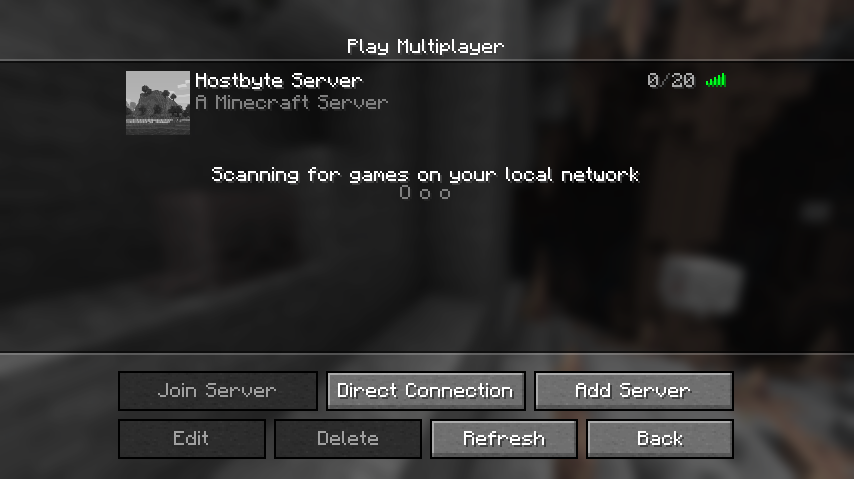
1. Your server will appear in the list.
2. Select it and click **Join Server**.
3. You should load into your world if the server is online and the version matches.
## ⚠️ Common Connection Issues
### “Can’t Connect to Server”
* Double-check the IP/Port or your custom domain.
* Confirm the server is **Online** in the Game Panel.
* DNS changes can take time—wait up to 30 minutes if you just set a new domain record.
### “Outdated Client” or “Outdated Server”
* Your Minecraft version doesn’t match the server.
* In the Launcher, select the correct version profile and click **Play**.
### “Connection Timed Out”
* Check your internet connection and restart your router if needed.
* Temporarily disable local firewall/antivirus to test (then re-enable).
* Try again later if there’s scheduled maintenance (see status link below).
### “Incompatible Mods”
* Check to make sure the server and client mods are the same.
* Make sure all mods are on the same version.
* In some cases this could happen if you have client side mods installed on the server.
## Security Tips
* Share your IP/domain only with people you trust.
* Use **LuckPerms** and **EssentialsX** to manage ranks and commands safely.
* Keep your server jar and plugins up to date.
## Getting Help
* **Knowledge Base:** Browse more Java guides.
* **Support Tickets:** Join our discord server below to open a support ticket.
* **Discord:** Join our community discord here: [HostByte Discord](https://discord.gg/KUHW6QYzH6).
* **Status Page:** Check maintenance/outages: [status.hostbyte.net](https://status.hostbyte.net/).
## Step 4: Join Your Server
1. Your server will appear in the list.
2. Select it and click **Join Server**.
3. You should load into your world if the server is online and the version matches.
## ⚠️ Common Connection Issues
### “Can’t Connect to Server”
* Double-check the IP/Port or your custom domain.
* Confirm the server is **Online** in the Game Panel.
* DNS changes can take time—wait up to 30 minutes if you just set a new domain record.
### “Outdated Client” or “Outdated Server”
* Your Minecraft version doesn’t match the server.
* In the Launcher, select the correct version profile and click **Play**.
### “Connection Timed Out”
* Check your internet connection and restart your router if needed.
* Temporarily disable local firewall/antivirus to test (then re-enable).
* Try again later if there’s scheduled maintenance (see status link below).
### “Incompatible Mods”
* Check to make sure the server and client mods are the same.
* Make sure all mods are on the same version.
* In some cases this could happen if you have client side mods installed on the server.
## Security Tips
* Share your IP/domain only with people you trust.
* Use **LuckPerms** and **EssentialsX** to manage ranks and commands safely.
* Keep your server jar and plugins up to date.
## Getting Help
* **Knowledge Base:** Browse more Java guides.
* **Support Tickets:** Join our discord server below to open a support ticket.
* **Discord:** Join our community discord here: [HostByte Discord](https://discord.gg/KUHW6QYzH6).
* **Status Page:** Check maintenance/outages: [status.hostbyte.net](https://status.hostbyte.net/).