
How to Use the File Manager
What is the File Manager?
The File Manager provides web-based file management for your server:- File Editing - Edit configuration files directly in browser
- File Upload - Upload files from your computer
- File Download - Download files to your computer
- Directory Navigation - Browse server folders
- File Operations - Copy, move, rename, and delete files
- Permission Management - Set file permissions
- Search Function - Find specific files quickly
- Backup Creation - Create file backups to your PC
- Renaming - You can rename files
- Compressing - Compress files to package them for download
- Decompressing - Decompress a zip for larger files
Accessing the File Manager
Open the File Manager in your Game Panel:- Log into your HostByte Game Panel
- Navigate to your server
- Look for “Management” in the left sidebar
- Click on “File Manager” to open the File Manager
- You’ll see your server’s file structure
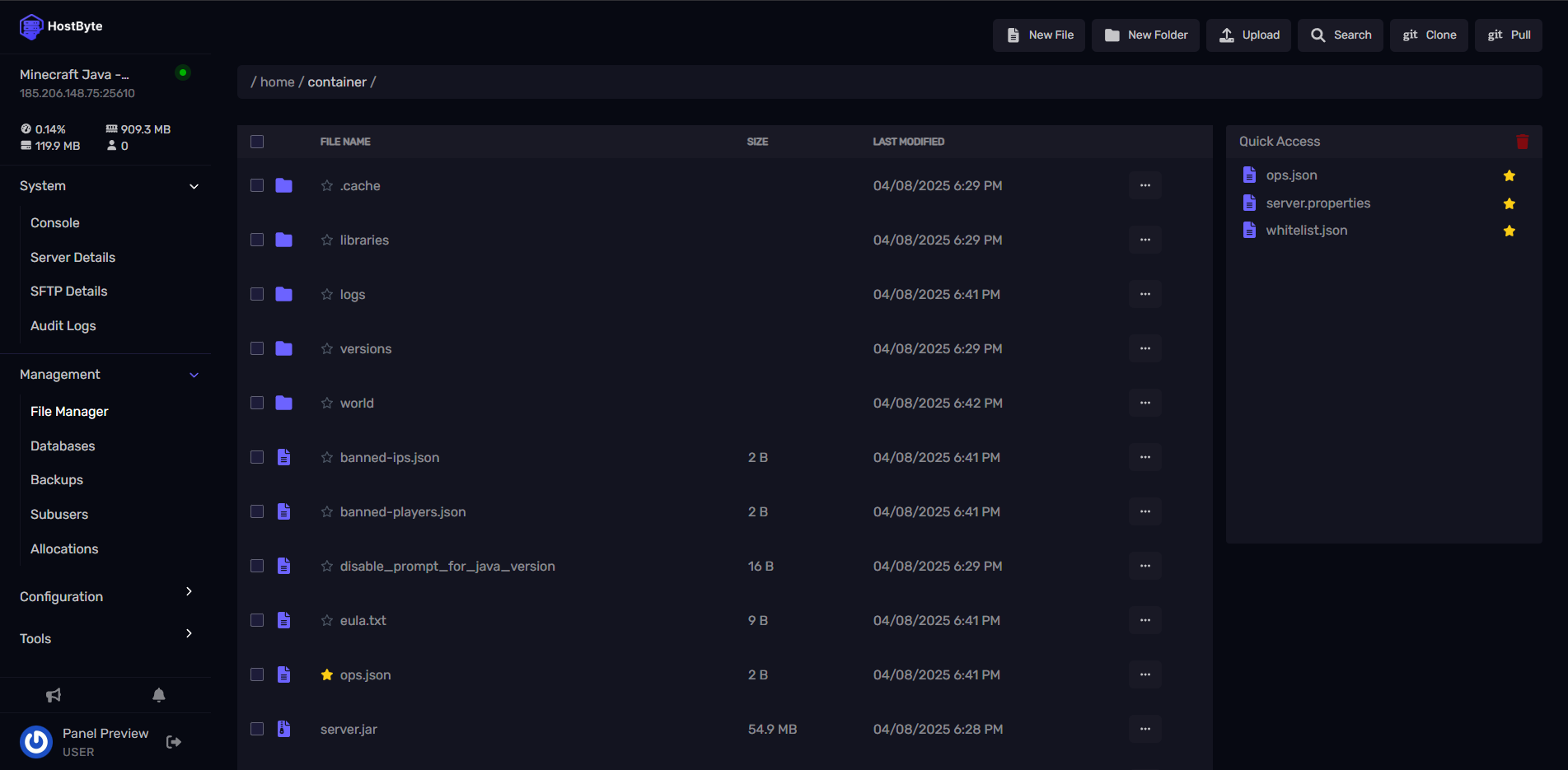
⭐ Note: The File Manager works whether your server is running or stopped.
Understanding the File Manager Interface
The File Manager interface is organized for easy navigation:Navigation Panel
- Breadcrumb Trail - Shows current directory path