
Before You Start (Strongly Recommended)
- Back up your server (worlds, plugins/mods, configs). Use Backups in the panel or download files via SFTP.
- Check compatibility:
- Paper/Spigot use plugins (Spigot API).
- Fabric/Forge use mods (not plugins).
- Plugins/mods are version-specific—update them when you change Minecraft versions.
- Downgrading? Worlds created or upgraded on newer versions may not safely load on older versions.
Step 1: Open “Server Actions”
- Log in to the HostByte Game Panel.
- Select your Java server.
-
On the left sidebar, click Configuration → Server Actions.
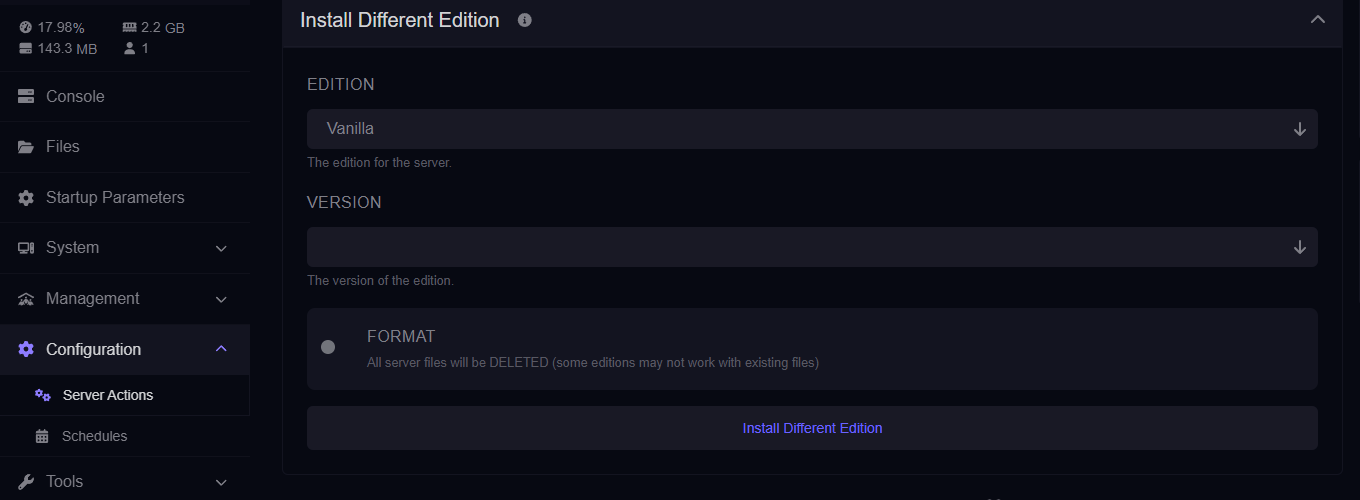
Step 2: Choose Your Edition and Version
Inside Install Different Edition, find the Edition selector and pick one:- Paper — Performance-focused, Spigot-compatible plugins.
- Spigot — Stable plugin platform (fewer performance patches than Paper).
- Fabric — Lightweight mod loader (Fabric mods).
- Forge — Popular mod loader for larger modpacks (Forge mods).
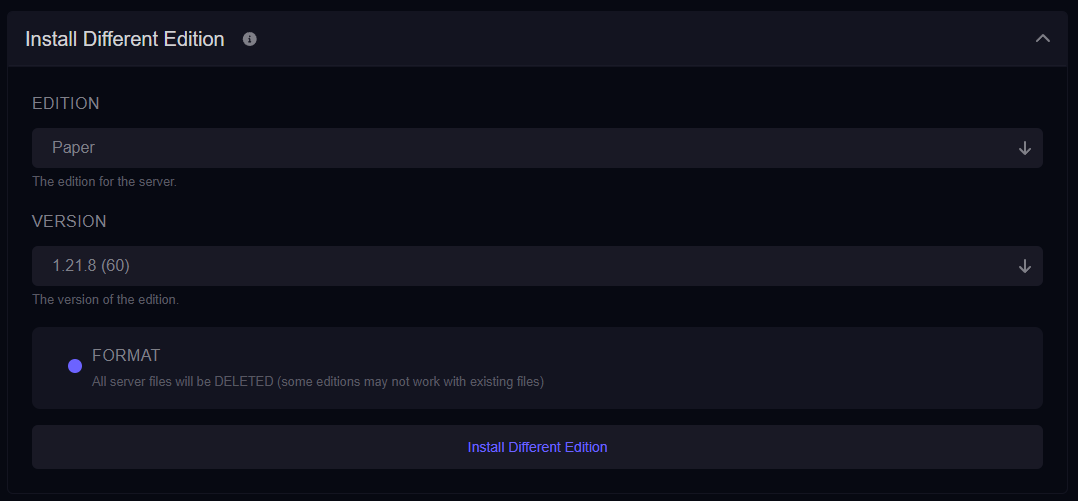
Step 3: Decide Whether to Format
You’ll see an optional Format button. This wipes the server files and installs a clean set for the selected edition/version. ⚠️ FORMAT WARNING Clicking Format will DELETE ALL SERVER FILES.When to use Format:
- Switching between plugins ↔ mods (Paper/Spigot ⇄ Fabric/Forge).
- Cleaning up a broken installation or starting fresh.
- Installing a brand-new modpack where a clean environment is expected.
When to avoid Format:
- Minor version changes within the same edition (e.g., Paper 1.20.4 → 1.20.6), and you want to keep files.
- You have worlds/configs you still need on disk (ensure a backup first regardless).
Step 5: Quick Install
- Confirm your Edition and Version selections.
- If you chose Format, confirm the deletion prompt after ensuring you have backups.
- Click the panel action to Install Different Edtion and it’ll automatically start the process.
Step 6: Post-Change Checks
- Open the Console to watch startup logs for errors.
- Re-upload plugins (Paper/Spigot) or mods (Fabric/Forge) compatible with the new version.
- Verify your world loads and TPS is stable.
Common Issues & Fixes
Server boots to errors after switching
- Remove incompatible plugins/mods. Install versions matching your new edition/version.
- For mod loaders, ensure the correct loader files are present (Fabric vs Forge).
- If switching between plugin and mod ecosystems, consider using Format for a clean start.
World won’t load or crashes
- Restore your backup of
world(andworld_nether,world_the_endif applicable). - Avoid downgrading worlds across major versions—use a copy on older versions at your own risk.
Client can’t join (Outdated Client/Server)
- Ensure your game client version matches the server version you just set.
- If you run a proxy/network, align the proxy’s target version with this server.
Edition Cheat-Sheet
- Paper: Best performance with plugin support (Spigot API).
- Spigot: Stable plugin platform; fewer performance patches than Paper.
- Fabric: Lightweight mod loader; fast updates; Fabric mods only.
- Forge: Heavy-duty modding; large modpacks; Forge mods only.
Getting Help
- Knowledge Base: See related Java guides (backups, plugin/mod installs).
- Support Tickets: Join our discord server below to open a support ticket.
- Discord: Join our community discord here: HostByte Discord.
- Status Page: Check maintenance/outages: status.hostbyte.net.